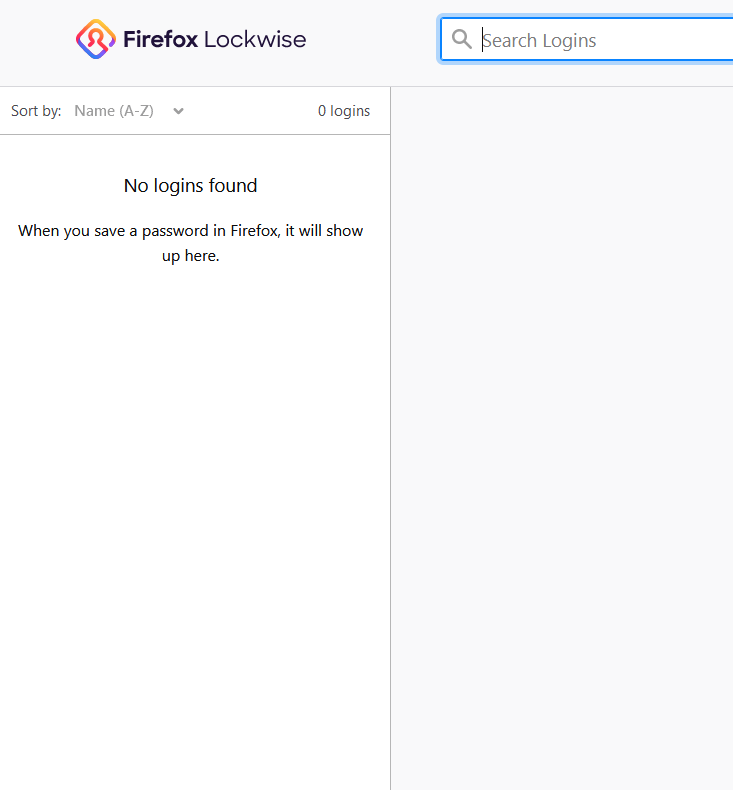
Some browsers offer a feature where they will automatically save your passwords within the browser. We recommend that you use this feature to help you remember your RFS password.
Table of Contents:
Retrieving Passwords from Chrome
Retrieving Passwords from Firefox
Saving Passwords in Chrome:
Follow these steps to make sure password Autofill is enabled in your Chrome browser:
1. Launch a Chrome window.
2. At the top right-hand corner of the window, click the three dots.

3. In the drop-down menu, select "Settings."
4. In the Settings page, click on "Autofill."
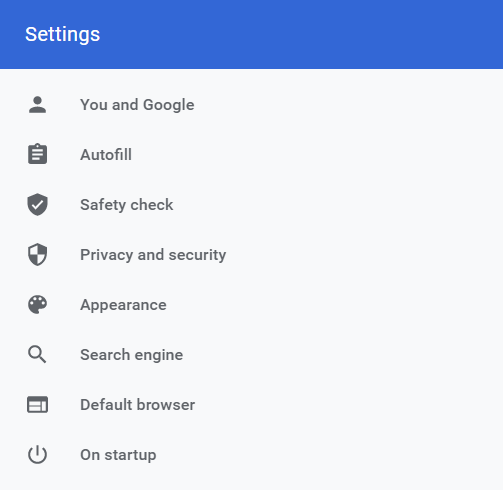
5. Select "Passwords" under the Autofill category.
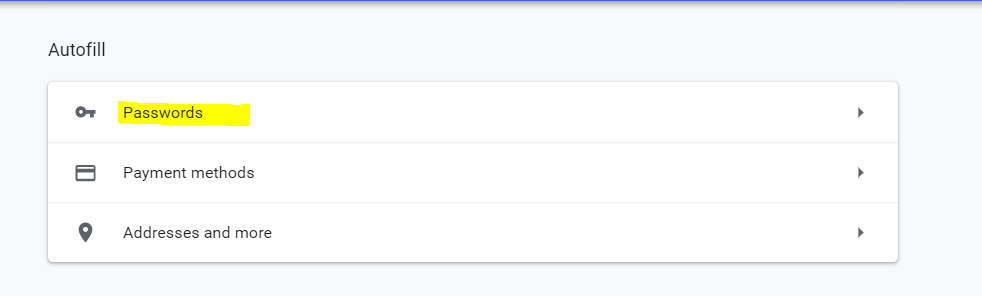
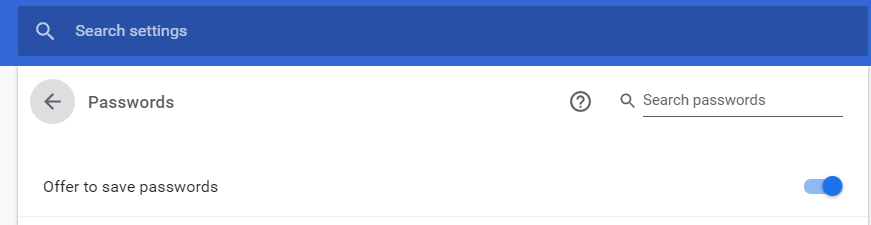
6. Make sure that "Offer to save passwords" is turned ON.
7. Whenever you log into a new website, you should get a pop-up asking if you want Chrome to save your username and password for the site. Make sure to agree to the pop-up to save your password.
Retrieving Passwords from Chrome:
If you have forgotten your RFS password, but know that it is saved in Chrome, you can use the following steps to retrieve it.
1. Launch a Chrome window.
2. At the top right-hand corner of the window, click the three dots.
3. In the drop-down menu, select "Settings."
4. In the Settings page, click on "Autofill."
5. Select "Passwords" under the Autofill category.
6. Scroll down to the "Saved Passwords" list. Logins are stored in alphabetical order, so your RFS password should be listed next to other websites starting with "R."

7. Click the eye icon and pass the security test given by Chrome to see your password (you may be asked to enter your computer password or scan your fingerprint).
Saving Passwords in Firefox:
Follow these steps to make sure password Autofill is enabled in your Firefox browser:
1. Open a new Firefox window.
2. Click on the 3 lines in the upper right corner of the window.

3. In the drop-down menu, select "Options."
4. Select "Privacy & Security."
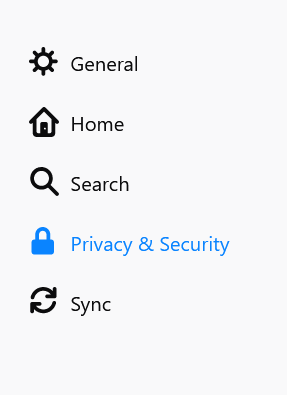
5. Scroll down the the "Logins & Passwords" heading. Make sure that "Ask to save logins and passwords for websites" and "Autofill logins and passwords" are both checked.

6. Whenever you log into a new website, you should get a pop-up asking if you want Firefox to save your username and password for the site. Make sure to agree to the pop-up to save your password for the site.
Retrieving Passwords from Firefox:
If you have forgotten your RFS password, but know that it is saved in Firefox, you can use the following steps to retrieve it.
1. Open a new Firefox window.
2. Click on the 3 lines in the upper right corner of the window.
3. In the drop-down menu, select "Logins and Passwords."
4. You will see a list of all of your saved logins and passwords in the Firefox Lockwise site. Search for "readyforsocial.com" in the search bar to find your RFS password.