Updated Calendar View (Combination of Parent Account and LinkedIn Group Accounts)
There`s an update in the Calendar section of the RFS Platform. Previously, users were limited to viewing only the events associated with the Parent Account. However, with this update, users with LinkedIn Group accounts, whether singular or multiple (LI Group/Personal), integrated under the Parent Account, can now benefit from expanded calendar features. From now on, Users can explore the calendar for both the Parent account and the LinkedIn Group Account(s).
Previous Calendar View:
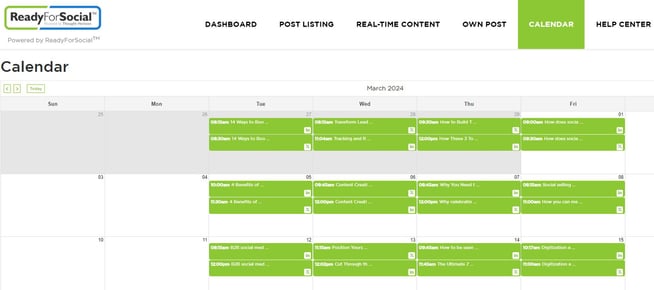
You could see only the parent account`s activity in the previous version.
Updated Version:
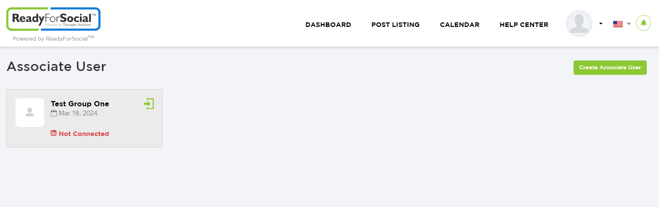
First of all, you must have a LinkedIn Group account or multiple LinkedIn Group accounts (LI Group/Personal) added under the Parent Account. You can read the following KB Articles to understand the process.
How to Create a New LinkedIn Group Account: KB Article
How to Manage an LinkedIn Group User: KB Article
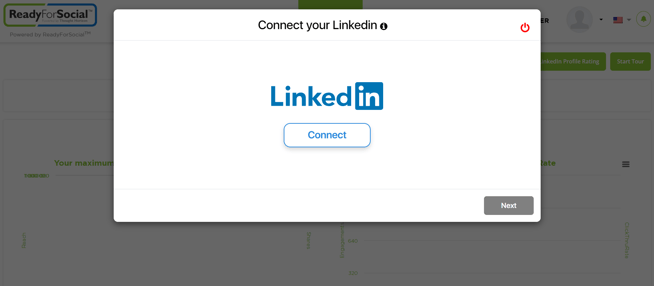
In the new calendar, LinkedIn Group users will be shown in tab form on the left side. A table named Me will be shown on top of the list for the login parent user. By default, the Me tab will be selected, users can switch between tabs to view the calendar events.
Parent Account`s Calendar View:
1st LinkedIn Group Account`s Calendar View:
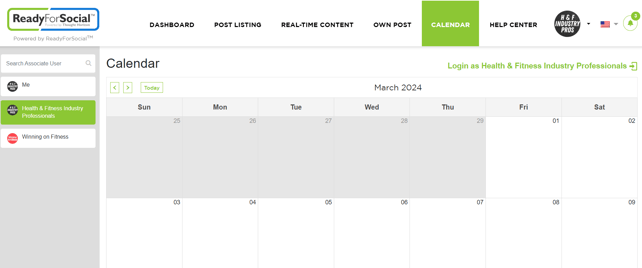
2nd LinkedIn Group Account`s Calendar View:

You can search any particular LinkedIn Group User from the Search Bar if you`ve added a bunch of LI Groups.
Note: You can add multiple LinkedIn Group accounts and view the Calendar by the same process.
Calendar Feature Overview:
When the parent user navigates to the calendar page, LinkedIn Group users will be shown in tab form on the left side of the calendar. A "Me" tab will be displayed at the top of the list for the logged-in parent user. By default, the "Me" tab will be selected, and the user can switch between tabs to view the calendar events of different users. Only active connected LinkedIn Group users will be shown in the left side list.
When a user selects any LinkedIn Group user, the calendar will update to display events specific to the selected user. Events for the selected LinkedIn Group user will be shown, and the primary user cannot reschedule those events.
When the primary user selects a LinkedIn Group user, "Login as {LinkedIn Group user group name}" will be displayed just to the right of the calendar title. When the user clicks on that text, the primary user will be logged in as the selected LinkedIn Group user.
If primary user doesn't have any connected LinkedIn Groups, than left side panel will not show in the calendar.
